August 4, 2026
How to Place an Order for a Customer
3 MIN READ
This guide is for sales representatives. If you take orders by phone or in person and your company uses Saal: Sales Agent, this is everything you need. You will place orders in the shop the same way a customer would — but in your customer's name, with their prices, and on their account. You do not need admin access and you will not see anything unfamiliar.
Before Your First Order
You need your own customer account in the shop, and your company must have designated you as a sales agent. If you sign in and see nothing unusual at the top of the page, ask whoever manages the shop to check your designation. Sign in to the shop as you normally would, using your own email address. Do not use a customer's login.
1. Start a Session
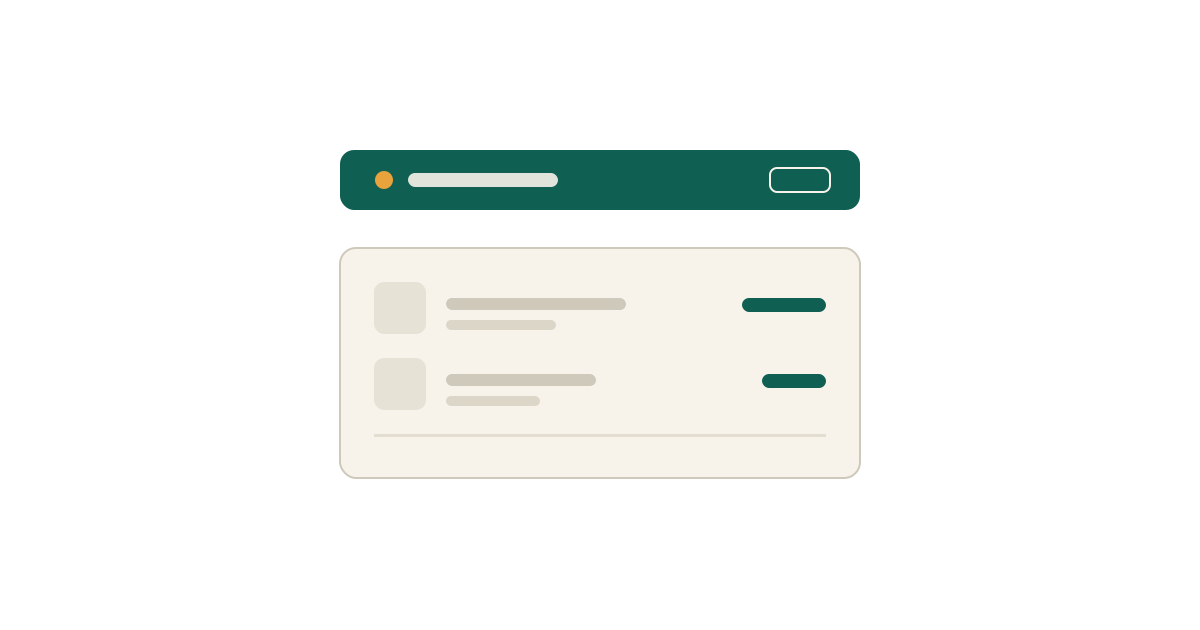
Once signed in, you will see a bar across the top of the page. This is your session bar. It tells you at all times whose account you are working in. Use it to search for the customer you are ordering for, by name or email address, and select them.
2. Record Consent
The first time you act for a given customer, you are asked for a consent date and an optional note. This is the record that the customer agreed to you ordering on their behalf. Enter the date they gave that agreement, and use the note for anything worth remembering — for example, that it was agreed by phone during a particular call. Keep the note factual and brief. Do not enter health information or other sensitive personal details. You are only asked once per customer. The next time you act for the same person, you go straight through.
3. Build the Order
The session bar now shows the customer's name. Everything you see in the shop is what they would see: their catalog, their agreed prices, and their delivery locations. Add products to the cart exactly as a customer would. Quantities, variants and delivery options all work normally. Check the session bar before you check out. If it shows the wrong name, end the session and start again with the right customer — it is much easier than correcting an order afterwards.
4. Complete the Order
What happens at checkout depends on how your company's shop is set up. In some shops you complete the checkout directly, and you can pay using a payment method the customer's company has saved. In others, the order is created and the customer receives an email with a link to pay it themselves. Your company will tell you which applies — you do not have to choose. Either way, the order is placed on the customer's account, not yours. It appears in their order history and their notification emails go to them.
5. End the Session
When you are finished, click End session in the session bar. You return to your own account. Always end the session before helping the next customer. If you do not, you risk placing the next order in the wrong name. Ending the session takes one click and is the single most useful habit to build. If you closed the browser without ending the session, sign in again and end it from the session bar before starting anything new.
Common Questions
The bar shows the wrong customer. End the session and select the right one. Nothing is placed until you check out. Prices look wrong. Prices come from the customer's account, not yours. If they are still wrong, the customer's pricing setup needs checking — tell whoever manages the shop. I cannot find a customer. You can only act for customers you have been given access to. If someone is missing, ask for your access to be extended. The bar disappeared. Refresh the page. If it is still missing, sign out and back in. I made a mistake on an order. Contact whoever manages the shop. Orders can be edited or cancelled in the admin, which you do not have access to — that is by design.